

Here is how to add social share buttons in WordPress the easy way: install the free Simple Social Buttons plugin. Then pick your networks, choose where the buttons show, and save. Share buttons then appear on every post in a few minutes, with no code.
You have two other options. You can place buttons in one exact spot with the SSB Shortcode block or the SSB shortcode. Or you can skip plugins and build share links by hand with the WordPress Social Icons block.
This guide walks through all three methods step by step. It also covers where to place your buttons and how to fix them when they don’t show.
| Method | Best for | Covers every post? | Cost |
|---|---|---|---|
| Simple Social Buttons plugin | Most blogs and business sites | Yes, automatically | Free (Pro adds more positions) |
| SSB Shortcode block or SSB shortcode | Buttons in one exact spot | No, one post or page at a time | Free |
| Social Icons block with share links | A few posts, no extra plugin | No, set up by hand on each post | Free |
Table of Contents
What Are Social Share Buttons and Why Add Them?
Social share buttons let readers share your post in one click. They work with Facebook, X, LinkedIn, WhatsApp, and other networks. They usually sit above or below a post, or float at the side of the screen.
Readers who enjoy a post often want to pass it on. Without a share button, they have to copy the link and open another app, and most won’t bother.
Why Add Social Share Buttons?
- They make sharing fast. One click opens the network with your post ready to share.
- They bring in new readers. Each share puts your post in front of the sharer’s friends and followers.
- They remind readers to share. Many readers only think about sharing when they see a button.
- They cost nothing to try. Simple Social Buttons has a free version, and you can remove the buttons at any time.
Share Buttons vs Follow Buttons: What’s the Difference?
Share buttons let readers share the page they are reading. Follow buttons (often called social icons) send readers to your social profiles so they can follow you.
| Share buttons | Follow buttons (social icons) | |
|---|---|---|
| What they do | Share the current post or page | Open your social profile |
| Main goal | More reach for each post | More followers |
| Usual spot | Above or below posts, or a floating sidebar | Header, footer, or author box |
| How to add them in WordPress | Simple Social Buttons or hand-built share links | The WordPress Social Icons block |
This guide covers share buttons. For follow buttons, see this guide on how to add social media icons to WordPress.
Method 1: How to Add Social Share Buttons in WordPress with a Plugin
The fastest way to add social share buttons in WordPress is Simple Social Buttons. You set it up once. The buttons then show on every post you choose, old and new. Setup takes seven short steps.
Step 1: Find Simple Social Buttons
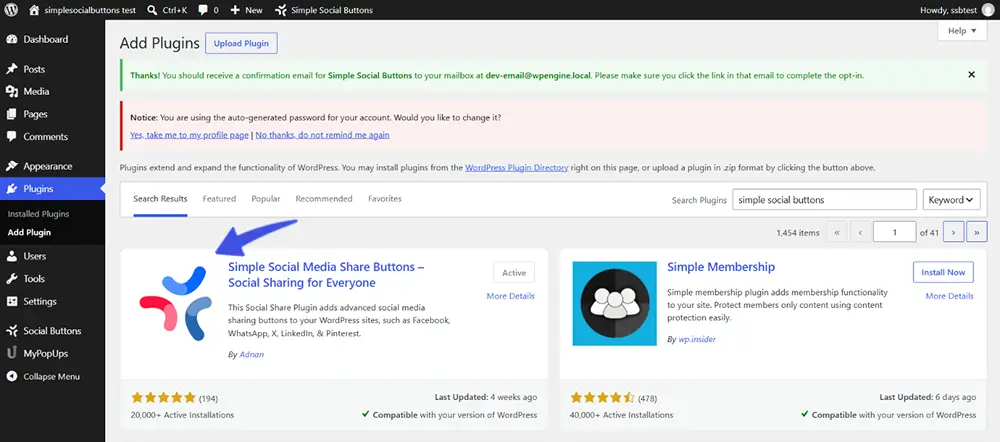
Simple Social Buttons is a free share button plugin on WordPress.org. It has 20,000+ active installs and a 4.8/5 rating. It offers 19 share options, works in the block editor, and is compatible with AMP pages.
Step 2: Install and Activate Simple Social Buttons
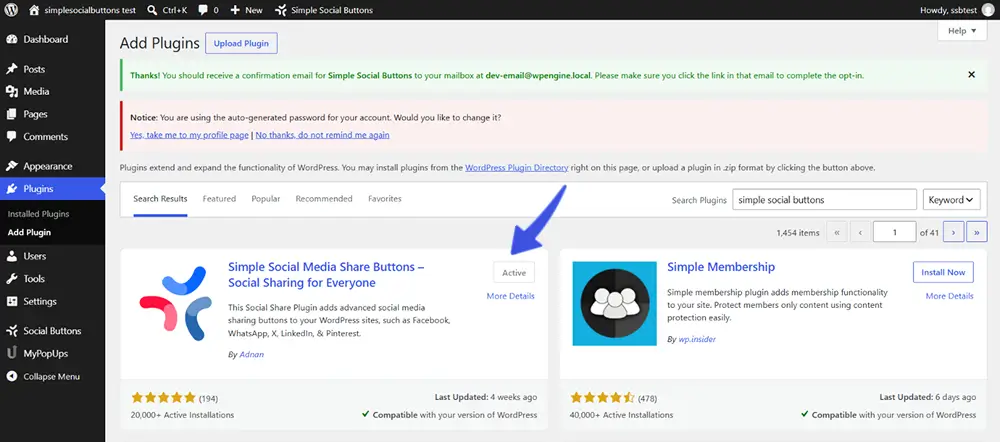
- Log in to your WordPress dashboard.
- Go to Plugins > Add New Plugin.
- Type Simple Social Buttons in the search box.
- Click Install Now, then click Activate.
Step 3: Choose Your Social Networks
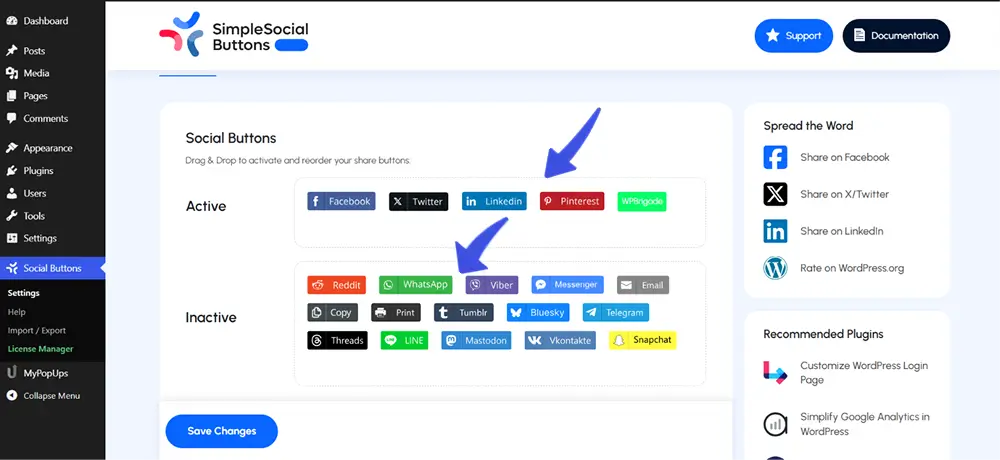
Turn on only the networks your readers use. Facebook, X, LinkedIn, Pinterest, and WhatsApp are good starting points for most blogs.
Simple Social Buttons offers 19 share options, including Bluesky, Threads, Mastodon, Telegram, Reddit, Email, and Copy Link. Keep your row short, though. Four to six buttons are easier to scan than fifteen.
Need a network that isn’t on the list? Simple Social Buttons Pro lets you add a new social network.
Step 4: Pick a Button Style
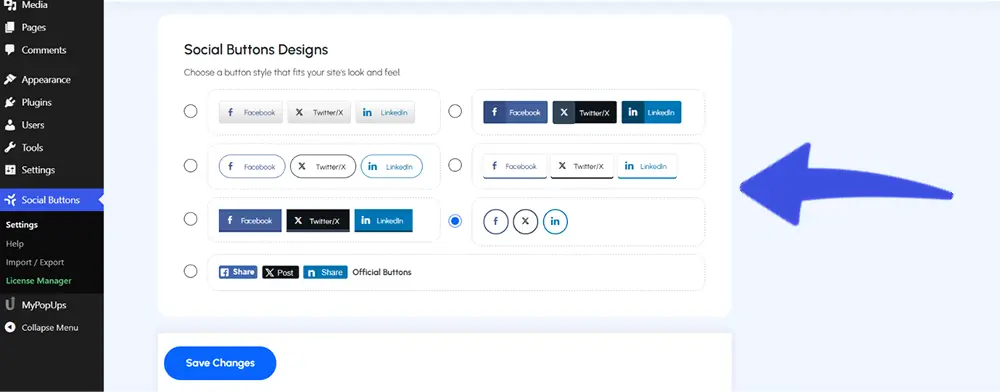
Simple Social Buttons offers several button designs, including Flat, Circle, and the official network styles. Pick one that matches your site, then preview it before you move on.
With Simple Social Buttons Pro, you can also change the button colors to match your brand.
Step 5: Choose Where the Buttons Appear
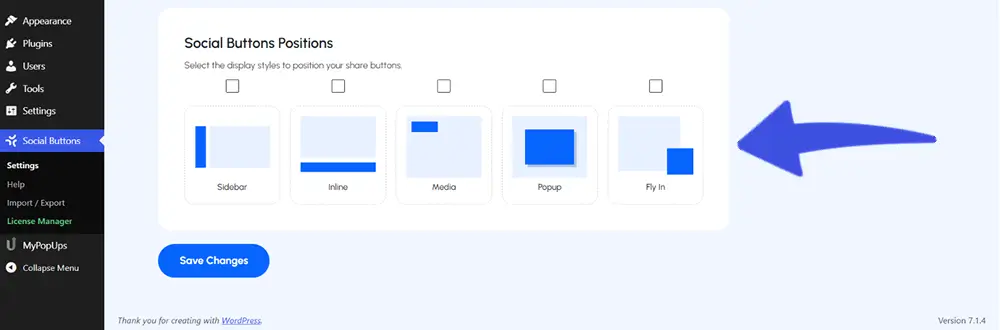
Simple Social Buttons can show share buttons in five positions. Two are free, and three need Pro.
| Position | What readers see | Plan |
|---|---|---|
| Inline | A row of buttons above the content, below it, or both | Free |
| Sidebar | Buttons fixed to the left or right edge as readers scroll | Free |
| On media | Buttons over your images and videos | Pro |
| Popup | A share box that opens on the screen | Pro |
| Fly-in | A share box that slides in as readers scroll | Pro |
For most blogs, inline buttons below the content plus a sidebar work well. Readers see the bottom row right after they finish reading, and the sidebar stays visible the whole time.
You can also choose which content shows buttons, such as posts, pages, or custom post types.
Step 6: Turn On Share Counts (Optional)
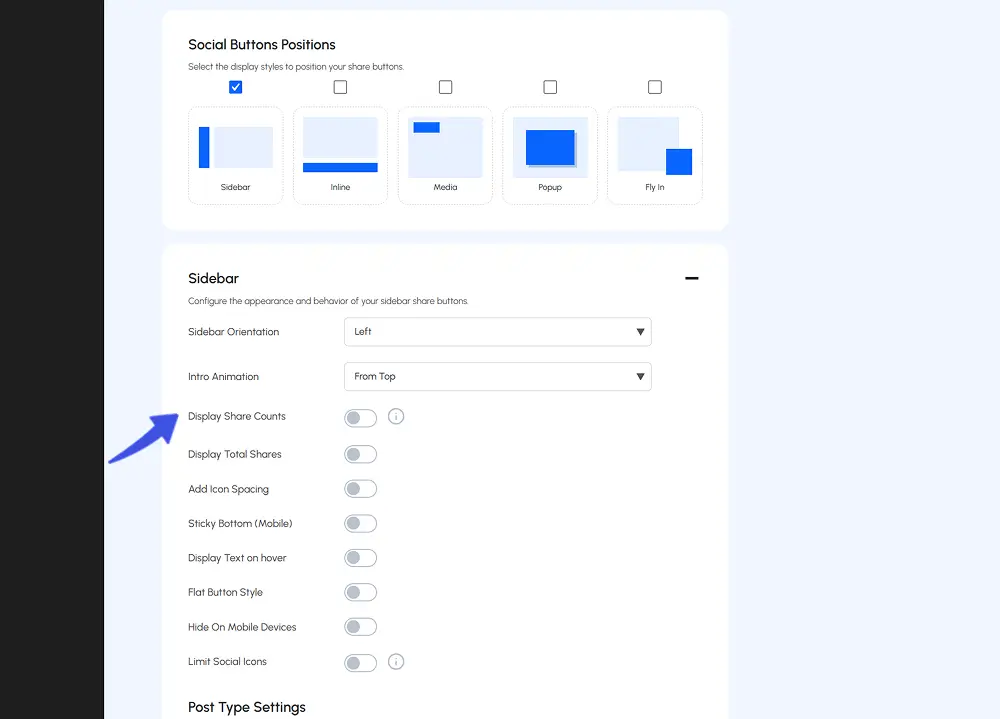
A share count shows how many times a post has been shared. It works as social proof because new readers see that others found the post useful.
To turn it on, open the position you picked and enable the share count option under it. Skip counts on brand-new posts, since a low number can put readers off.
If your numbers look wrong, see why social counts are not updating.
Step 7: Save and Test Your Buttons
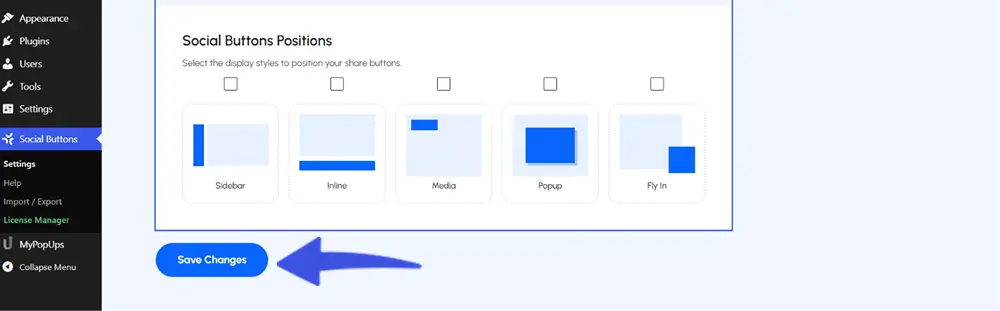
Click Save Changes, then check the buttons on a live post.
Test on desktop: Open a published post in a new tab. Click each button and check that the right network opens with your post.
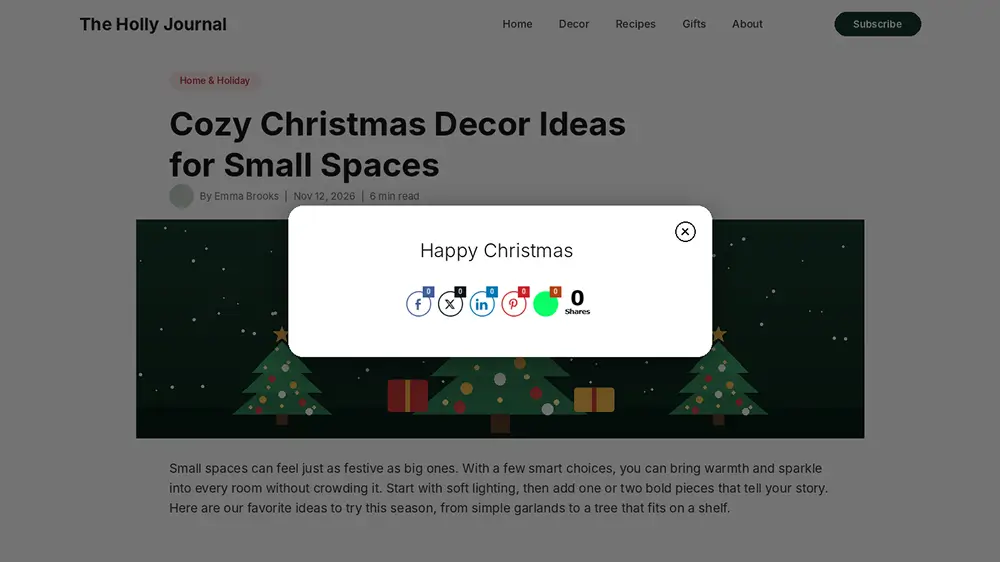
Mobile Test: Open the same post on your phone. The buttons should be easy to see and tap.
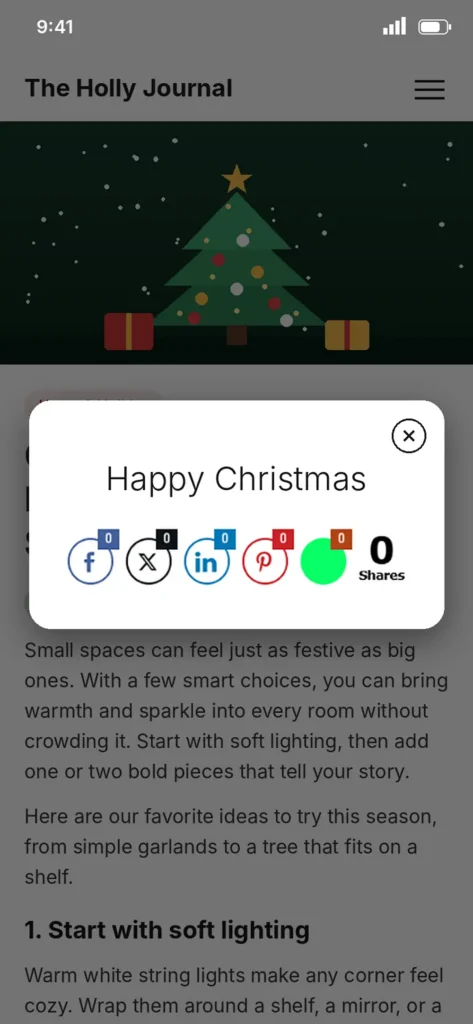
Method 2: Add Social Share Buttons in WordPress with a Block or Shortcode
Use the SSB Shortcode block or the SSB shortcode to place share buttons in one exact spot, like halfway through a long post. Both come with Simple Social Buttons, so install and activate it first.
Option 1: Use the SSB Shortcode Block

- Open the post or page where you want the buttons.
- Click the + button to add a new block.
- Type SSB in the search box.
- Click the SSB Shortcode block to add it.
- Move the block to the spot where you want the buttons.
- Click Update or Publish.
The block uses the networks and style you set in Simple Social Buttons settings.
Option 2: Use the SSB Shortcode
Add a Shortcode block, paste the shortcode below, and save the post. The buttons appear exactly where the block sits.
[SSB]You can change the buttons for that one spot with these options:
- order: which networks show, and in what order
- theme: the button design (theme1 to theme4, Flat, Circle, or Official)
- align: left, right, or centered
- counter: true or false, to show or hide share counts
Here is an example that shows four networks in the official style, aligned right, with counts:
[SSB theme="Official" align="right" counter="true" order="twitter,pinterest,fbshare,linkedin"]Preview the post and click each button to check that it opens the right network.
Method 3: Add Social Share Buttons in WordPress Without a Plugin
You can add share buttons without a plugin by pasting share links into the WordPress Social Icons block. It needs no code, but you build the links by hand on every post. That makes it a fit for sites with only a few posts.
Step 1: Build a Share Link for Each Network
A share link opens a network’s share screen with your post already filled in. Copy the format below and replace YOUR-POST-URL with the full address of your post.
| Network | Share link format |
|---|---|
| https://www.facebook.com/sharer/sharer.php?u=YOUR-POST-URL | |
| X (Twitter) | https://twitter.com/intent/tweet?url=YOUR-POST-URL&text=YOUR-TITLE |
| https://www.linkedin.com/sharing/share-offsite/?url=YOUR-POST-URL | |
| https://pinterest.com/pin/create/button/?url=YOUR-POST-URL | |
| https://wa.me/?text=YOUR-POST-URL | |
| mailto:?subject=YOUR-TITLE&body=YOUR-POST-URL |
If your title has spaces, replace each space with %20 so the link doesn’t break.
Step 2: Paste the Links into a Social Icons Block
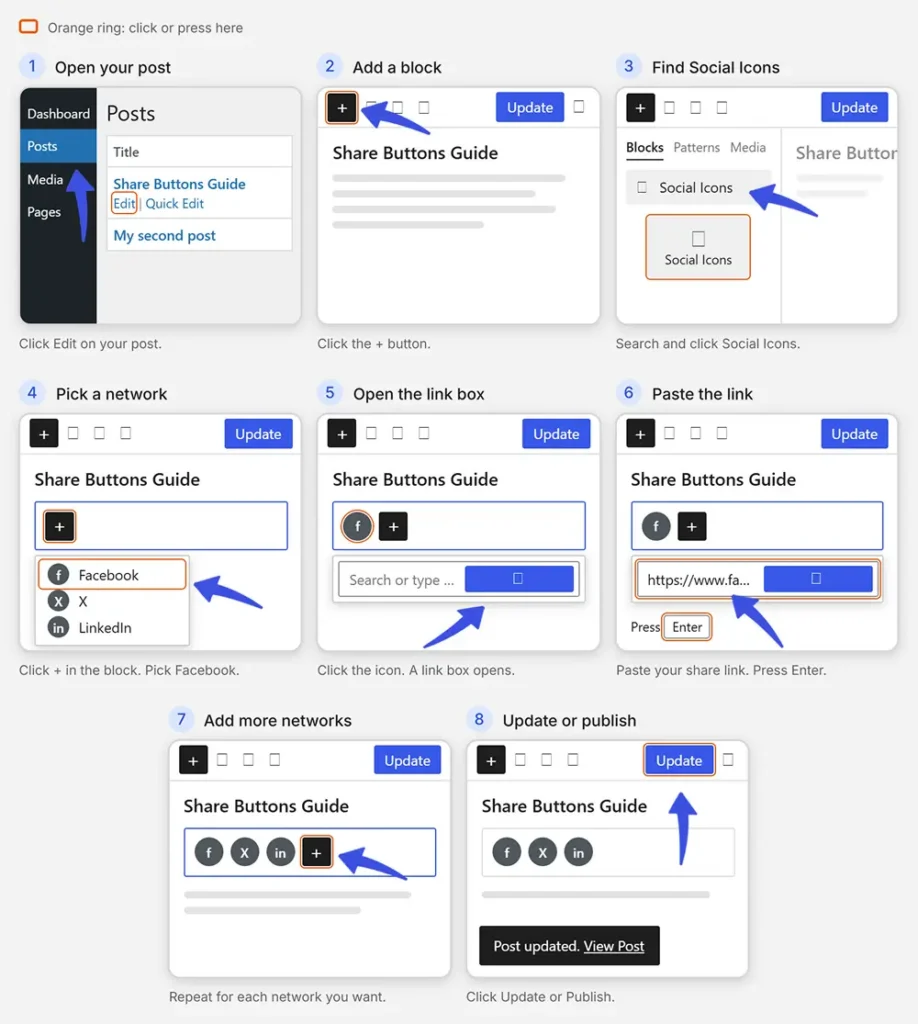
- Open the post where you want the buttons.
- Click the + button to add a new block.
- Search for Social Icons and click it.
- Click the + inside the block and pick a network, like Facebook.
- Click the icon. A box opens for the link.
- Paste your share link in the box and press Enter.
- Repeat for each network you want.
- Click Update or Publish.
Put the block at the end of the post, where readers finish reading.
Step 3: Test Every Link
Open the published post in a new tab and click each icon. Each one should open the right network with your post ready to share.
Limits of the No-Plugin Method
- You repeat the setup on every post.
- There are no share counts.
- No floating sidebar, so buttons only show where you place the block.
- The links break if you change the post’s URL.
To add share buttons to every post at once, use Simple Social Buttons instead.
Why Use Simple Social Buttons for Share Buttons?
Simple Social Buttons adds share buttons to every post without code. Its free version covers the positions most sites need. Here is what you get:
- Free core features: inline and sidebar buttons, 19 share options, share counts, and the SSB Shortcode block.
- Mobile-friendly buttons: they work on small screens, and you can hide any position on mobile.
- Block editor support: the SSB Shortcode and SSB Click To Tweet blocks.
- Click to Tweet: highlight a quote that readers can post to X in one click.
- AMP compatibility: buttons also work on AMP versions of your pages.
- Pro positions: share buttons on images and videos, popups, fly-ins, and custom colors.
- Trusted by site owners: 20,000+ active installs and a 4.8 out of 5 rating on WordPress.org.
Get Simple Social Buttons free on WordPress.org, or compare Pro plans for popups, fly-ins, and on-media buttons.
Why Are Social Share Buttons Not Showing in WordPress?
Social share buttons usually don’t show because of unsaved settings, a missing position or network, or an old cached page. Work through the table from the top.
| Problem | Likely cause | Fix |
|---|---|---|
| Buttons don’t show anywhere | Settings were not saved | Open Simple Social Buttons settings, click Save Changes, and reload your post |
| Buttons don’t show anywhere | No position is turned on, or no network is picked | Turn on at least one position and at least one network |
| Buttons show on posts but not on pages | That content type is not selected | Select the content types you want (posts, pages, or custom post types) |
| Buttons show on desktop but not on your phone | The hide on mobile option is on | Turn off the option that hides buttons on mobile |
| Fly-in, popup, or on-media buttons don’t show | These positions need Pro | Use the inline or sidebar position, or upgrade to Pro |
| You changed settings but nothing looks different | A caching plugin or your browser is showing an old copy | Clear your site cache and browser cache, then reload |
| The shortcode shows as plain text | The shortcode was typed wrong | Paste the SSB shortcode into a Shortcode block, or use the SSB Shortcode block |
| Buttons look broken after an update | Your theme or another plugin is clashing | Update Simple Social Buttons, then turn off other plugins one by one to find the clash |
FAQs
How do I add social share buttons in WordPress?
Install the free Simple Social Buttons plugin, choose your networks, pick where the buttons appear, and save. The buttons then show on every post you selected. You can also place buttons in one spot with the SSB Shortcode block, or add share links by hand with the Social Icons block.
How do I add social buttons to my website?
First, decide which kind of button you need. Share buttons let readers share your post, and follow buttons send readers to your social profiles. For share buttons, use a plugin like Simple Social Buttons. For follow buttons, add the Social Icons block in the WordPress editor and paste in your profile links.
How do I add buttons on WordPress?
For a normal button like “Read More” or “Buy Now,” use the Buttons block. Click the + button, search for Buttons, and add your text and link. For social share buttons, use a plugin, because it builds the correct share link for each network on every post.
What is the best social share buttons plugin for WordPress?
The best social share plugin is one that is light, works on phones, and lets you choose where buttons appear. Simple Social Buttons does all three. It offers 19 share options, works in the block editor, and has a free version with inline and sidebar buttons.
How do I connect social media to WordPress?
Add social buttons to your site. Share buttons let readers post your content to their own feeds, and follow buttons link to your profiles. Install Simple Social Buttons for share buttons, and use the Social Icons block for profile links.
Why are my social share buttons not showing?
Social share buttons usually don’t show because of unsaved settings, a missing position or network, or an old cached page. Save the settings again, make sure at least one position and network is enabled, and clear your site and browser cache.
Can I add Bluesky, Threads, or Mastodon share buttons in WordPress?
Yes. Simple Social Buttons includes share buttons for Bluesky, Threads, and Mastodon, along with Telegram, LINE, Viber, Messenger, VK, and Snapchat. Turn them on in the network settings like any other network.
Conclusion
Simple Social Buttons is the quickest way to add social share buttons in WordPress. One setup covers every post. Use the SSB Shortcode block when you want buttons in a single spot. Use the Social Icons block only if you have a few posts and want no extra plugin.
Whichever method you pick, test your buttons on desktop and mobile before you publish.
Add free share buttons to your WordPress posts with Simple Social Buttons.